Interest File Editor
The file editor lists all the transactions in the file, together with the calculated interest and balances.
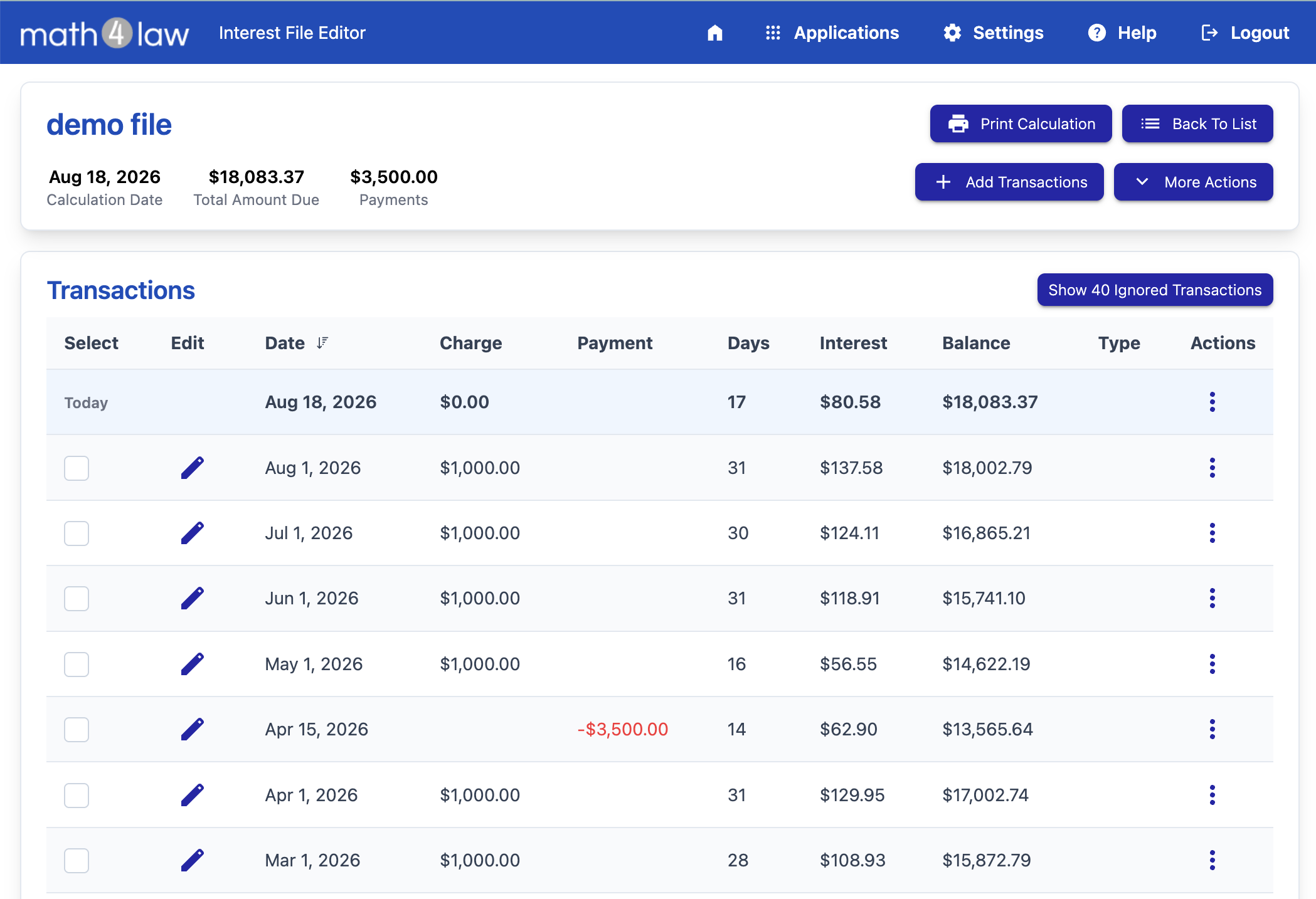
The file header shows a summary of the calculation: the Calculation Date, Total Amount Due, Principal Due, Interest Due, and total Payments.
Press the Print Calculation button to generate the printed calculation.
Adding Transactions
Press the Add Transactions button to open the transaction entry panel:
- Select whether this is a Charge or a Payment transaction.
- Enter the amount and the transaction date.
- To enter multiple recurring transactions at once, set the repeat frequency (Every Month, Every Two Weeks, Every Week, 1st and 15th, or 15th and Last Day) and an end date.
- Optionally, enter a comment and a transaction type. Charges can be typed as Payment Due, Court Cost, or Other Cost. Payments can be typed as Payment, Special Payment, Tax Intercept, or Adjustment.
- For simple interest files, you can override the default payment application order for an individual payment.
Press Add to add the transactions and keep the panel open, or Add and Close when you are done.
The Transaction List
Every transaction is listed with its date, charge or payment amount, and the calculated values:
- For simple interest files: the number of days, the interest for the period, the Principal Due, and the Interest Due.
- For compound interest files: the number of compound periods, the transaction value, the interest, and the running Balance.
To edit a transaction, press the Edit button on its row. To delete transactions, select their rows and use the More Actions menu.
More Actions
The More Actions menu provides the following options:
- Add rate change: change the interest rate starting on a given date. A subtotal is calculated for every rate change.
- Calculate for a date: add a subtotal on a date of your choice.
- Auto-calculate for the current date: toggle the automatic calculation for today, as described in the file settings.
- Edit file settings: change the settings that were entered when creating the file.
- Delete selected transactions, or delete all transactions.
- Download Data: download the transaction data.
Free Files
Free files are limited to five transactions. The editor shows a banner on free files. When you are ready, you can buy the file to remove the transaction limit.